Non-Contact Thermometer
How to Use
The following information will help you take observations using the Non-Contact Thermometer.
How to Install the My Inhealhcare App
- Open the App Store or Google Play Store on your mobile/tablet.
- In the search bar, enter My Inhealthcare.
- Click on the My Inhealthcare app and click Install.
- The app will take a few moments to download onto your mobile/tablet.
- Open the app and enter your Username and Password.
- When you first log into the app, you will be prompted to create a 6-digit PIN code.
- This PIN code will be used for future log ins.
- Once logged in, the app will display your name and the present day observation task.
- Please ensure you remain logged into the app while taking your observation.
- If you close the app or log out before submitting, your reading remains on the app.

Taking Your Observations
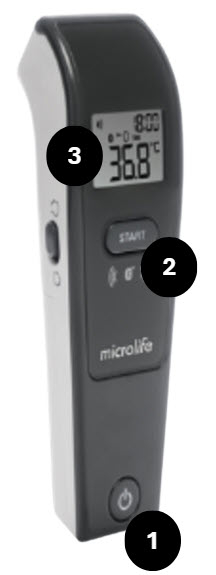
Step 1 - Log In and Power On
- Log into the app.
- Press the ON button (number 1) to power the thermometer. The screen will illuminate briefly.
Step 2 - Take Your Observation
- Once the screen illuminates, press the Start button (number 2).
- Position the thermometer at the center of the forehead, no more than 5cm away.
Step 3 - Read and Record
Temperature
The temperature reading will appear on the thermometer monitor. For example, 36.8
- Your temperature will appear on the thermometer monitor. (number 1).
- Click Connect to Microlife to Non-Contact Thermometer.
- The observation will appear in the app.
- To take another observation, press Clear and repeat the steps.
Entering Your Observation Manually
This applies to those who are not using the Bluetooth option, that connects the observation to the app automatically using the Connect button.
- Enter the temperature observation shown on the thermometer monitor (number 1) into the app.
Step 4 - Submit Observation
- Complete any remaining observations/questions.
- Click Submit to send these to the clinical team.
Non-Contact Thermometer Cleaning Instructions
- Please refer to the device booklet in your kit bag for detailed cleaning instructions.
Troubleshooting
How to change the temperature display
Hold down the START button for 5 seconds. The current temperature setting will display, change to the appropriate (celsius or fahrenheit).
Error function in display
The thermometer is not displaying the reading. Turn the thermometer OFF and back ON and re-take the reading.
Blank display
The thermometer is displaying a blank screen. Make sure the batteries have been inserted correctly and re-take the reading.
Flat battery indicator
The thermometer has a flat battery. Replace the batteries and re-take the reading.
T001
The thermometer has been turned ON, however, not taken the reading. Turn the thermometer OFF and back ON ad re-take the reading.
T004
The thermometer has stopped broadcasting with a connect timeout event. Turn the thermometer OFF and back ON ad re-take the reading.
T006
The thermometer is disconnecting before reconnecting. Turn the thermometer OFF and back ON ad re-take the reading.
No measurements displaying
No measurements are displaying. Turn the thermometer OFF and back ON ad re-take the reading.