Pulse Oximeter Monitor
How to Use
The following information will help you take observations using the Pulse Oximeter Monitor.
How to Install the My Inhealhcare App
- Open the App Store or Google Play Store on your mobile/tablet.
- In the search bar, enter My Inhealthcare.
- Click on the My Inhealthcare app and click Install.
- The app will take a few moments to download onto your mobile/tablet.
- Open the app and enter your Username and Password.
- When you first log into the app, you will be prompted to create a 6-digit PIN code.
- This PIN code will be used for future log ins.
- Once logged in, the app will display your name and the present day observation task.
- Please ensure you remain logged into the app while taking your observation.
- If you close the app or log out before submitting, your reading remains on the app.

Taking Your Observations
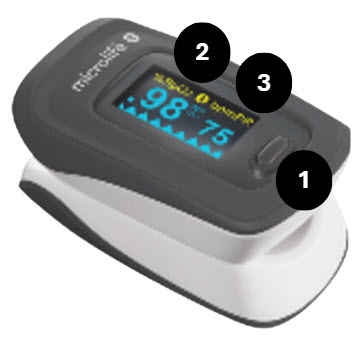
Step 1 - Log In and Power On
- Log into the app and insert one finger (nail side up) into the opening of the pulse oximeter monitor.
Step 2 - Take Your Observation
- Release the device and allow it to clamp down securely.
- Press the ON button (number 1) to take your observation.
Step 3 - Read and Record
SpO2 and bpm
The Pulse Oximetry (SpO2) reading will appear on the monitor (number 2). For example, 98
The bpm is your Heart Rate and will appear on the monitor (number 3). For example, 75
- The reading will appear on the monitor.
- Click Connect to Microlife Oximeter.
- The observation will appear in the app.
- To take another observation, press Clear and repeat the steps.
Entering Your Observation Manually
This applies to those who are not using the Bluetooth option, that connects the observation to the app automatically using the Connect button.
- Enter the Pulse Oximetery (SpO2) observation (number 2) into the app.
- Enter the bpm (Heart Rate) observation into the app (number 3) into the app.
Step 4 - Submit Observation
- Complete any remaining observations/questions.
- Click Submit to send these to the clinical team.
Pulse Oximeter Monitor Cleaning Instructions
- Please refer to the device booklet in your kit bag for detailed cleaning instructions.
Troubleshooting
SpO2 rate is not displaying normally
The finger might not be inserted properly or there may be excessive illumination. Retry inserting the finger into the device and measuring this again. To help further, turn the device OFF and back ON and re-try.
SpO2 or pulse rate is shown unstable
The finger might not be inserted deep enough or there is excessive movement. Re-insert the finger into the device, and calmly sit and re-take the observation.
The device cannot be powered on
The device might be low battery power or may have the batteries not installed correctly. Replace the batteries if required or take the current batteries out and re-enter them.
The display suddenly switches off
The device automatically powers off when no signal is detected, after 10 seconds or the battery power may be too low to operate. Replace the batteries if required or re-try take the observation.
The device will not connect to the mobile/tablet
The Pulse Oximeter Monitor is not connecting to the mobile/tablet, therefore, preventing the observation from transferring to the My Inhealthcare App.
Turn the device ON and OFF and re-take the observation. If this fails to work, in the Bluetooth settings on your mobile/tablet, forget/remove the monitor. Re-take the observation, this will then prompt a PAIR notification, press PAIR or OK to connect.
P103
The Pulse Oximeter Monitor has timed out. Turn the device OFF and ON and retry taking the observation.
P104
The Pulse Oximeter Monitor is connected to the mobile/tablet; however, it has not supplied an observation. Place the finger in the device and re-take the reading.
B003
The Bluetooth request timed out and no observations were received from the device, in the allowed scanning time. The pulse oximeter will scan for 30 seconds, before presenting an observation.
If this continues to still not show an observation, turn the Microlife device OFF and ON and re-take the measurement.