Inhealthcare Service Desk
How to: Access The Help Centre
The Help Centre is specifically designed to address all platform-related generic inquiries. It offers valuable guidance on functionality through user manuals, step-by-step tutorials, and a comprehensive FAQ section.
We invite you to utilise the user-friendly search box to explore relevant articles tailored to your needs. Should you be unable to locate the answer to your question, please do not hesitate to reach out to us for assistance.
Example: Search Guidance Article
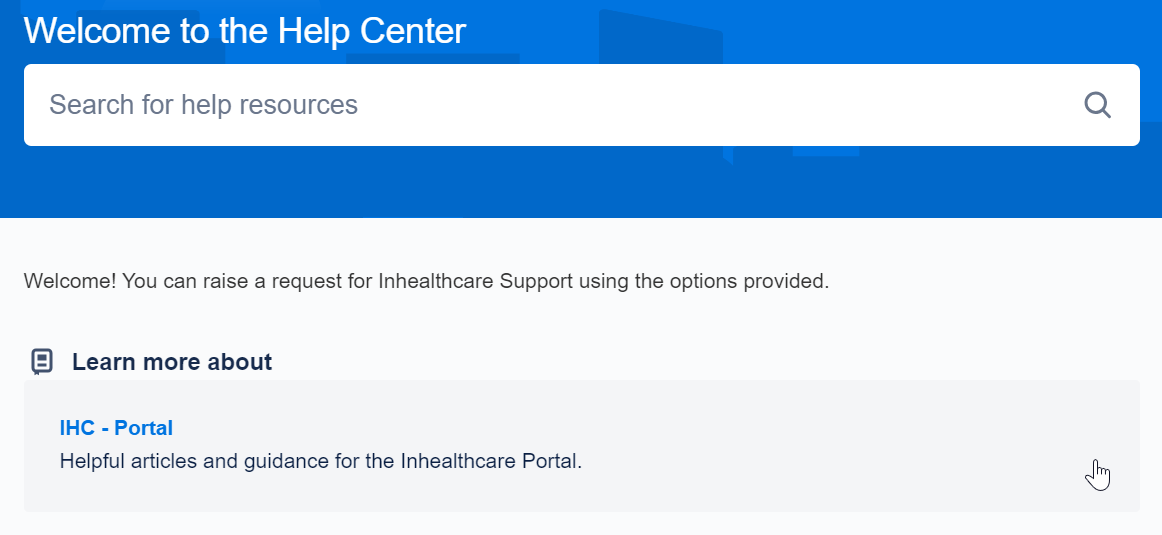
Example: Guidance Article

Example: User Manuals

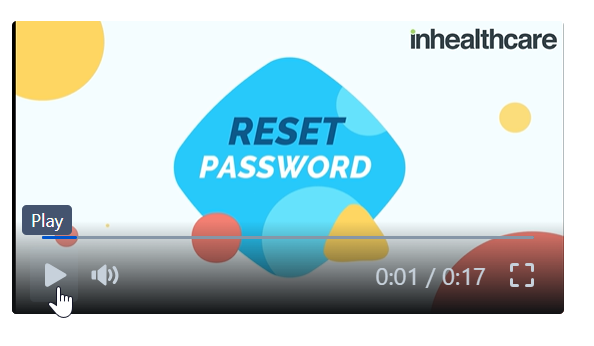
Example: Snippet Tutorial
How to: Contact Us
You can reach the Service Desk through multiple channels: the Service Desk Portal, telephone, or email.
Service Desk Portal
To access the Service Desk Portal, please use the following link: Portal Link
Telephone: 0300 247 8600
If you reach out to us by telephone, kindly have the following information ready:
- Your full name and email address.
- Your organisation.
- The service you are querying.
- If this relates to the Sandpit or Live environment.
- Your query.
- Any supporting documentation and screenshots.
Email: ih-support@resmed.co.uk
When you reach out to us via email, a Support Query will be automatically created on the Service Desk Portal. You will receive an acknowledgment confirming that your email has been successfully sent. To assist us in addressing your query effectively, please include the information listed below when submitting your email.
- Your full name and email address.
- Your organisation.
- The service you are querying.
- If this relates to the Sandpit or Live environment.
- Your query.
- Any supporting documentation and screenshots.
If you are not currently setup as a user on the Service Desk Portal, please request access via email, with the following information.
- Your full name and email address.
- Your organisation.
- Authorisation from your line manager.
How to: Raise Queries on The Service Desk Portal
To raise a query:
- Begin by navigating to the Service Desk Portal Link.
- This action will direct you to the Help Centre screen.
- Scroll down to the bottom of the page.
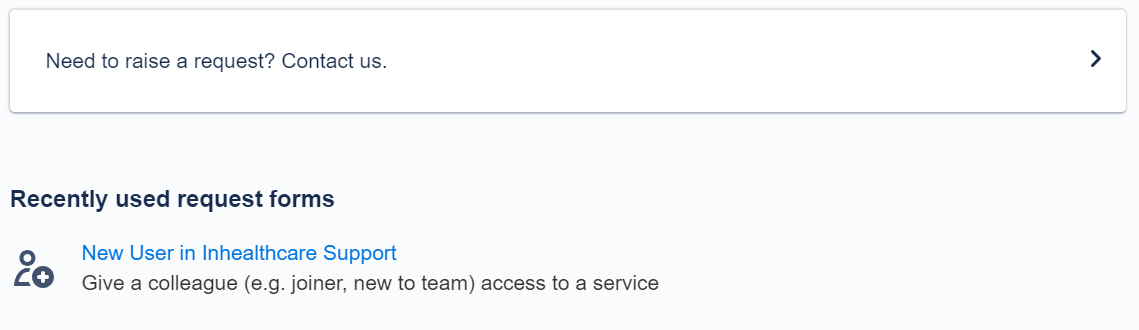
- Click on the Need to raise a request? Contact us button.
- Select the appropriate query type.
- Input the necessary information.
- Finally, click Send to submit your query to the Service Desk.
As you begin to use the Service Desk Portal, recently used Query Forms will also begin to populate for quick access.
How to: View The Different Types of Queries
The queries are categorised for ease, into the following categories:
- Incident (All Incidents)
- User Access Request (New User, Change of Role, Revoke, Change Request & Other Access Requests)
- Toolkit Service Review (Service Reviews)
- Change My Service (Configuration Requests & Change Requests)
- Deployment Request (All Deployment Requests)
How to: Search & Filter Queries
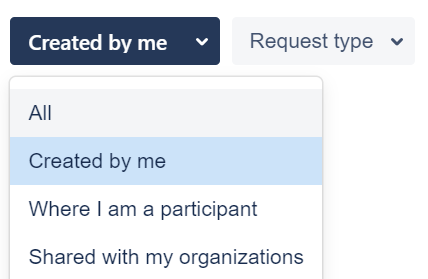
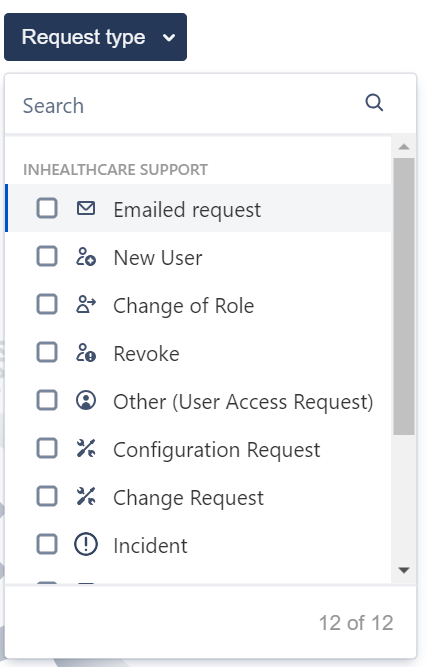
The Requests screen enables effective management of all query types, whether new or existing. It offers filtering options for query types, queries initiated by you, those from your organisation, and queries in which you are a participant. Additionally, you can filter based on the current status of the queries.
Example: Query Filtering Options

Example: Query Status
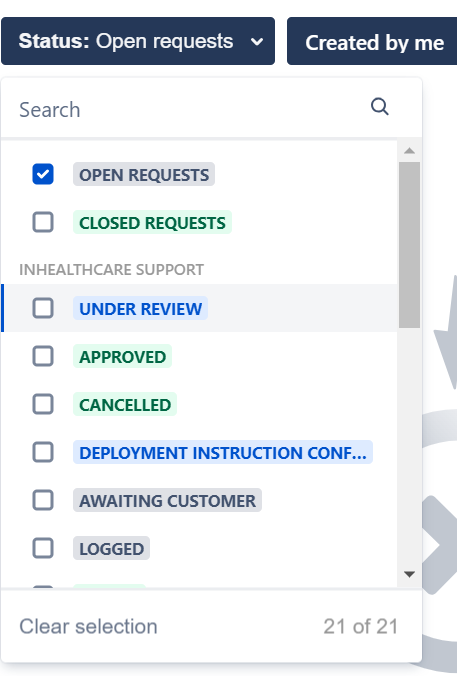
Example: Queries Created by Me
Example: Query Request Type
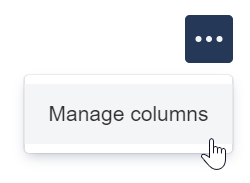
Manage Columns
The columns detailing the query information can also be customised via the Manage Column button.
Column types can be easily removed from the Requests screen by selecting the desired column type and clicking the x next to it. To re-add columns, simply select the dropdown menu on the screen and press the Done button.

At any time, you are able to navigate back to the Help Centre from the Query Requests area.
